Managing Hreflang in the UI
Overview
The Precision hreflang manager helps you define language and region tags in WordPress — ensuring international users reach the correct version of your content.
Editors use a structured table with accessible labels to add or update language and country pairs. A confirmation modal prevents accidental deletion of either individual tags or full rows.
Adding a Page Group
To begin adding hreflang tags, you must first define a group of pages:
- Click Add new row.
- Enter the group name (e.g.,
contact) — this can be anything you find helpful, it a group of pages with shared tags. - Now add hreflang tags, see the next section on how to do that.
Opening editors
If you have existing groups, the default screen shows all the groups with their editors closed. This has two purposes:
- You can find and focus the group you want to work with.
- Prevents “tag drift”. The first time you open a group’s editor all the tags are refreshed so you see the latest version of the truth. That means any slug renames, unpublish. or trash events made by site editors are reflected in the tags.
Adding Hreflang Entries
Once a group exists, click Add hreflang on that row to create a language-country pair:
- Language: Choose the ISO language code (e.g., EN, DE, FR).
- Country: Choose a specific country (e.g., GB, AT) or select Catchall/Region Independent if the url covers all other regions that use this language.
- URL: Pick the url from your multisite network.
- Click Update to save.
These are the basis of our hreflang plugin.
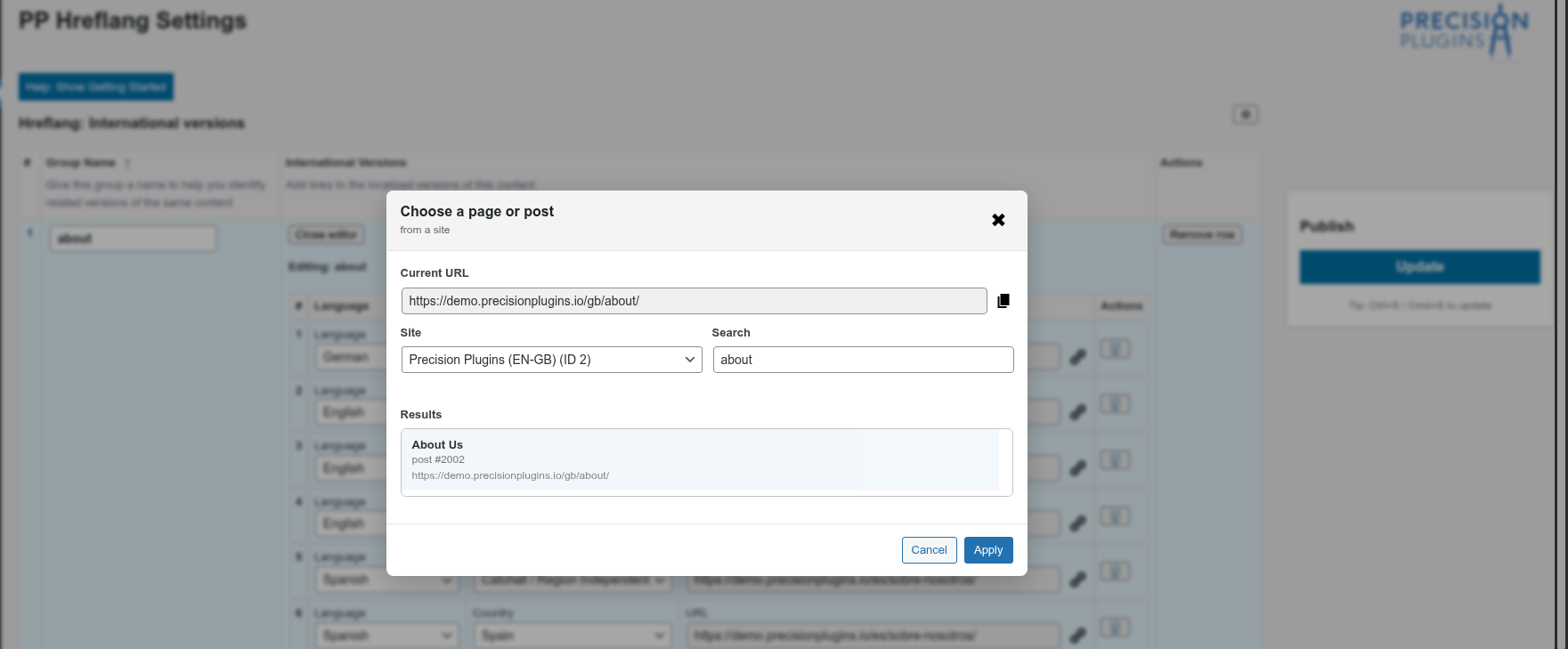
Choose a site then search for the page that needs an hreflang tag
What is Catchall?
Catchall (Region Independent) creates an hreflang="xx" entry without a country suffix. It is used to cover variations that don’t have a specific tag.
For example, if you have en-GB and en-US but not en-IN, the catchall en tag covers that gap.
That means for a particular slug you’ll often have two entries:
- An entry for a language-country pair such as en-US for /us/contact/ and
- An entry for just the language en that covers all other countries using that language which points to the catchall /us/contact/ url.
Editing Hreflang Entries
- You can change the URL, language, or region directly in the row.
- Partial entries (e.g., missing language or URL) are flagged but preserved — no invalid tags are generated.
- Changes take effect only after clicking the blue Update button.
NB This version supports linking pages within the multisite network. Support for external URLs will be added in a future update.
Deleting Entries
There are two types of deletions, each confirmed via a modal dialog:
- Delete a hreflang tag: Click the trash icon beside a specific entry.
- Delete a slug row: Click Remove row to remove the entire group of entries.
Renaming a Group
If you’d like to rename a group (e.g., from contact to contact-us), simply over type the old name with the new one:
- Change the name in the row (e.g., to
contact-us). - Click Update.
NB Tags are unaffected by the group name, its just a handy label for you to think about groups of tags.
associated hreflang URLs accordingly.
Catchall vs. x-default: What’s the Difference?
Use Catchall if you don’t have a specific country or regional variation for that language. For example if you a have tag for de-DE and de-AT (Germany and Austria respectively), but not Swiss-German then the catchall “de” entry can be used for de-CH.
| Feature | Catchall | x-default |
|---|---|---|
| hreflang value | en, de, etc. |
x-defaultGoogle x-default documentation |
| Purpose | Fallback for unspecified language-region combos. | Cover homes page intended for world-wide audience. Such a page typically has a language selector. |
| Use Case | Cover variants of a language that you don’t have a specific page for. | Direct users to a language selector or language-specific homepage. |
Conclusion
- The plugin simplifies hreflang management through a user-friendly UI.
- Partial entries are handled gracefully – no invalid tags are written.
- Tags are fresh when you open an editor any trash, unpublish or renames on a post/page are honoured.
- Catchall and
x-defaultprovide comprehensive fallback options. - Don’t forget: Changes are only saved when you click the blue Update button.